Patience is a virtue.
I’ve been told that the iPhone 3G will shortly be available in Mauritius for purchase. To be more precise, the devices are coming to Mauritius this month and are expected to be sold as from November.
Unfortunately, I don’t know anything about the price but I’ll hazard a guess of around Rs. 20,000 for the 8Gb model and Rs. 23,000 for the 16Gb model in line with the quoted price in the Hong-Kong Apple Store. I know this is steep but you need to bear in mind two important things:
Firstly, the iPhone is not only a cellphone despite its name. It is a Wifi-enabled computer (with a powerful browser and enterprise-grade email client) and a video iPod and a GPS receiver and a game console and a digital camera which can also be used to make 3G phone calls. Additionally, hundred of free and commercial applications can be downloaded from the Apple iPhone AppStore (direct link to the AppStore for iTunes users) greatly increasing the capabilities of the iPhone.
Secondly, the price (if confirmed of course) compares favorably with what Americans pay. The 8Gb and 16Gb models of the iPhone 3G cost $199 (about Rs. 6000) and $299 (about Rs. 8500) there. But, and this is a massive but, you are forced to subscribe to a voice plan (to make calls), unlimited data plan (to access the web) and (optionally) a SMS plan (to send SMS) at around $75 (about Rs. 2000) per month for two years. For the 16Gb model, this amounts to Rs. 8500 + 24 x Rs. 2000 = Rs. 56,500 (mind you, for unlimited data i.e. browsing, emailing, chatting and Facebooking which does not really exist here.)
Of course, here we’ll have to pay for pre-paid voice and SMS credits as well as 3G data. For the sake of argument, let’s say we accept to pay Rs. 56,500 – Rs. 23,000 = Rs. 33,500 for 2 years. This equates to, say, downloading 2Mb of data (Rs. 0.01 per Kb i.e Rs. 20), sending 10 SMS (Rs. 6) and making 15 minutes of voice call everyday for two years which I find excessive.
Personally, I don’t intend to use my future iPhone in this fashion. Remember, it has a Wifi antenna and, as I am nearly always near an access point, I will use Wifi when browsing and checking my emails. What I am implying is that I don’t think I’ll have to buy more credits to be able to use my future iPhone compared to what I’m paying now with my trusty Nokia 6288.
So, in a sense, we’re getting a better deal than Americans as we have the choice of not using (and not paying for) the data plan if we don’t want to. Heck, we can even choose not to use 3G!
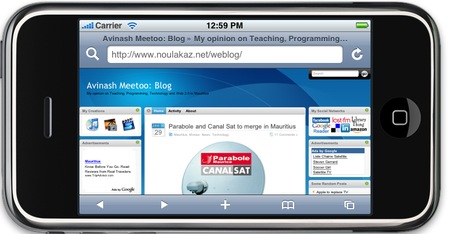
The image above
I already have an iPhone 3G… except that it is just a software simulator. In fact, today I installed the Apple iPhone Software Development Kit on my MacBook (you need a Mac…) which, in addition to all the tools needed to build iPhone applications, features this iPhone simulator. It works, it’s nice-looking and it gives me the opportunity of making nice screenshots.
What can I ask more?
I know!
I need to convince my Minister of Finance (aka my dear Christina) to allow me to ask Father Xmas a black 16Gb Apple iPhone 3G in December :-)
Alleluia.
Well i think the price is exaggerating compared to the USA and Avinash for those who don’t own a mac book and want to simulate the iphone on their PC can use the following application, more info on the link below
http://aviassin.wikidot.com/iphonedriftThe big question is… will it be locked? If it’s locked, then the price “may” be little more affordable & it will more likely be bundled with data contracts.
If it’s unlocked, well it would be 20k+. :(
& as til now, there’s no software unlock! :)
I have been saving for it .. so its a good news :D
unfortunately, i wanted to keep my emtel fone num.but i guess i’ll have to do without :p the iphone is too tempting.
Well, that’s weird… does this mean that it will be unlocked? As selling an iPhone 8GB for RS20,000 must be fuly unlocked :S
But I’ll tell you, I would prefer to buy an iPhone at RS5000-Rs10,000 with 2 year contract than pay RS20,000 in one go.
Avinash,
There’s another way to view websites as they were meant to be viewed on an iPhone, just install Safari, enable the Developer Menu, then click Develop >> User Agent >> Mobile Safari 1.1.3 – iPhone
there are many other options like iPod Touch, Firefox, Internet Explorer or Opera
Thanks for that. When I tested it, only the Google main page was significantly different (i.e. narrower and simpler), the other web pages I accessed were pretty much the same.
To Jo:
What kind of two year contract?
@Sailesh
You can do that with Firefox’s User Agent Switcher as well:
Mozilla/5.0 (iPhone; U; CPU like Mac OS X; en) AppleWebKit/420+ (KHTML, like Gecko) Version/3.0 Mobile/1A543a Safari/419.3
Check out Google Reader’s iPhone interface – it’s great! :D
http://www.google.com/reader/i/
hi guys
I am a fan of the iphone 3g… I am waiting impatiently for the iphone to come here in mauritius… So, Avinash, where do u got all these informations about iphone comming this month but it will be sold in november???? Is that the real prices you mentioned above???
cheers
jpf
I can’t reveal my source of information (sounds like in a movie :-) )
As for the prices, I just used the Hong-Kong prices as the situation is similar to our own there. If you look closely, you’ll read ‘iPhone 3G purchased at the Apple Online Store can be activated with any wireless carrier. Simply insert the SIM from your current phone into iPhone 3G and connect to iTunes 8 to complete activation.’ meaning that the iPhone 3G being sold there is unblocked i.e. would work equally well with Emtel or Orange here.
To reiterate, I won’t be surprised seeing an unblocked iPhone 3G 16Gb being sold here in November around Rs. 25,000.
Expensive I know. But so damn desirable :-)
so do we get wireless internet from the carrier or from our own local modem? ie home?
:D great i can use my fone num with the iphone 3G :D
sounds like a small laptop :D:D:D:D
my only fear is that [after i tried yan’s ipod touch] my fingers seems to big to type on that onscreen keypad. :p i suppose i can use a matchstick. besides, wouldn’t want kfc oil on the screen :p
Hi dude from the other post (I wonder why people don’t use their real names…),
Wireless Internet (through Wifi) is from your own access point of course. We’re not talking of HSPDA here. And this is great as the cost is nothing comparable.
hum, but why won’t we have our price subsidized? Why no contract? As far as I know, orange sell iPhones in France with contract
For sure, the iphone 3g is a great phone.
Whatever the price is… i have to buy one :-)
Let us know when u have more information please…
Thanks
Because there is no such thing as an unlimited data plan here which is, IMHO, the only valid reason to pay a flat fee of Rs. 2000 per month for a bloody phone.
Because i don’t want everyone to own one :p
An ‘unlimited’ data plan is overrated. I own the iphone and while I enjoy using it, I cannot conceive using more than a gigabyte if I have a wireless network and home and if I do not tether.
The beauty of the iphone really comes in when there’s a need for information available on the web while about town. The device however is a bit underpowered in my opinion and the battery life a bit short. But it looks so good!
Funnily, I think that there are two sorts of persons who dream of an iPhone 3G:
(1) The technology freaks who want to finally have a device which is a mix of a computer, an iPod, a game console, a GPS receiver, a digital camera and cellphone so that they don’t have to carry six devices when they have to go out.
(2) The fashion victims (aka seki content glacé) who want to impress their acquaintances and who won’t use the iPhone to the full.
In both cases, you better be rich as the iPhone will be an expensive investment IMHO.
Personally, I am 80% (1) and 20% (2).
What about you?
200 % (1) 50 % (2) LOL :D:D
Something’s funny about the banner “Twice as fast Half the price”
Actually it should be for us Mauritians “The same speed Twice the price” :D
Well, if the iPhone is going to be Rs20,000 + then I assume it will be like in Hong Kong unlocked, but the question is, will it be unlocked only for local operator or internationally?
60% (1) [its even more fun to pimp your iphone when you have tweaked it and customized it soo much that the type 2s will be in awe and say “wow”]
40% (2): heh am currently in my age group to “glacE”
:p there’s no need to be rich to own an iphone, if you want something, just save for it :p, some months of “kass gato” is enough :p, only some patience is needed…
@avinash
LOL :D
(1) – 100% – I’d take an N95 in that case… coz it has a much better camera. ;)
(2) – 20% – Come on, what’s the point of having gizmos if you can’t brag about it! :P
WHENCE my interest in the new mobile devices and services is aroused again and I find out that Vodafone caps the COST of a customer’s usage of 3G at 1.00 GBP per day without limiting the download. It is either that or 5.00 GBP per month for unlimited 3G usage. I think it is time to get an iPhone.
Eddy.
Well I am already using a SE P990i, with and the technologies like in the Iphone except 2 things, accelerometer and mac OS. but anything else I can do with my and even write symbian Applications for my phone.
However I will still bye one to feel the experience personally, After all it has the most powerfull OS inside.
Well currently I have a 20inch IMac, and already reviewing the Iphone SDK and API to write softwares for my Iphone ;).
Apple is the best.
(I might be wrong)
IMO, nowadays to buy a phone is really useless in a way that in countries such as Australia people use mobile phone as a bonus to the service they are using. Even if you are paying the phone, you don’t seem to be paying for the it.
for example this is a link to optus iphone plan ” http://personal.optus.com.au/web/ocaportal.portal?_nfpb=true&_pageLabel=Template_wRHS&FP=/personal/mobile/iphone3G/yesiphonecapplans&site=personal ”
I’m not going to convert the price of the phone, but instead give an idea about the cost of living in australia.
Just a basic wages for a 16 years old kid working part-time at KFC/Mc Donalds is $14 AUS per hour. Someone who get an average wages of $25 /hr can have a fair life on his own (all included – accomodation/food etc..)
another question would be why buying a phone with lots of features if you are not going to use them or most of the services are not yet implemented in the country.
So now think about, is it worth to buy a phone for Rs 20,000 ??? just to call someone, take a few pictures and connect to your Access point at home just to surf internet.
Don’t get me wrong, i’m not against the iphone, but i’m just thinking that Mauritius is not ready yet for iphone. It will just be a fancy toy where some people will be saving their “casse gato” (like selven said before) for several MONTHS!!!
@lildevil13: What can I say? We are led by example. Our PM thinks that an Aston Martin is fit for our 90 km/h motorways.
Eddy.
@lildevil13
for the sake of owning one
for the sake of bragging about it
for the sake of having something that can be tweaked
for the sake of pimping it after tweaking it to how i want
for the sake of writing my own app on a phone [all these years i’ve only got an old nokia 3510]
for the sake of reading some pdfs in the bus [i have a 1hr30mins bus ride to home]
for the sake of playing some games
and definitely dreaming of how much apps i can install in that which could just make things nicer :p
for the sake of understanding it how it runs on the inside :p
after soo much reasons i wonder why i shouldn’t be buying one :p
ps. am not buying an iphone for the supposedly services that can come with it, but for the computing power such a small device can offer me…on top of that it is sexy :p
Hi guys
I’ve heard that the iphone 3g will be available in december at the mauritius telecom showroom… not in november…
I phoned 8900 today and a charming lady told me that… She didn’t know the price and whether it will be on contract or not.
So I guess we will have to wait another month guys…
when will the iphone 3g be on sale
beware of charming ladies on the fone…. because they tend to be creatures who knows nothing more than just use a fone and convince you to buy :p without knowing what to make you buy. hahahahahaha
Hmm read a few comments above, am pretty sure there in lies the answer to your question :p dude you must be blind!
+$3|v3n
Man! That’s tiresome… Before, it was Septembre, then novembre, and no December?!?! (o_O!!!!) WHAT THE HECK!!! Orange also removed the iPhone image on its site -.-
the iphone 3g is in Mauritius at Future shop and zed phone shop, rose hill
And its fully unlocked from factory
The price is Rs 38000 (inc vat) for the 16gb black version and made me run away.
:p something new will by then already come out :p
Ha! It’s not as if Google will launch a mobile phone… Oh, wait…
Eddy.
@ armand, its not the iPhone 3g that they are selling at Future shop.. Its the old one… Dude, only silly people would buy old iPhones at Rs38000… I’ve saw a shop in rose hill also selling old iPhones at Rs40,000 it made me goes like “ROFL” “LMAO”
its the 16gb black version, also take a close look at it
it will be better to buy it on ebay my friends.. I’ve buy many items on ebay and if it is very secure.
And then get a scratched material :p
@zefantterrible, what about unlocking? is it available… for what price on ebay?
For all those craving for the Iphone 3G, do you know that the Iphone does not have
Bluetooth A2DP, so no wireless music, no Video recording (can only take 2MP photos) and worst of all especially for a phone with 3G in its name cannot do 3G video call.
Pfffffff
We all know the iphone specifications man…
I personally don’t care if there’s no video recording, bluetooth a2dp, etc… etc…
I love that phone and i will certainly buy it very soon
yeah we already know what the iPhone has… we don’t need to share things with other people via bluetooth… Heck! we have wifi capabilities… and soon podcasts download over wifi without using iTunes!!… btw 1 Novembre is this saturday, no news from Orange still!! about this blog, it said that the iPhone 3g should have arrived this month(October)… Everyday I keep watching the http://www.orange.mu and still the same… no news about the iPhone 3G :(
btw check this , it makes me laugh but also feel sad about this person
http://discussions.apple.com/thread.jspa?threadID=1769481&tstart=60
(What the heck?!?! last days of December?!?!?!?!)
Meanwhile, the emulator on the Mac remains very appealing.
@Jo.. Hello, the price of the iphone 3G unlock from ebay.co.uk varies from Rs 15000 to Rs 30000 including the shipping and you can get a locked one also and to unlock it it is so simple.. you can either do the hardware one or software one.. The hardware one is using a small device which is like a sim card and place it on the sim card.. it makes the iphone think that it is a valid sim card.. The software one is very simple.. Plug the iphone and click unlock on the software.. (however you must not let the iphone auto update from itunes, but install the firmware manually.. It can be easily found on the net for free).. Personally, I think that I will buy one from ebay before the end of November. :-)
@ Zenfantterrible, hmm as far as I know, there is no software unlock for the iPhone 3G…
btw I’ve heard its at the end of Novembre that the iPhone 3g will be released… Avinash if you could comfirm wthis with your source, it will be great
hey, i’m from belgium and i wanna buy a iphone in mauritius but i don’t want to buy a unlock version but a luck version, so i can unlock him myself @ home. But the problem is: i don’t know how to asked in the shop, will they let me buy a iphone without contracts and other papers??
Please answer me @ soon as possible
hmm, but why do you want to buy the locked iPhone only to unlock it at home? Well, as far as I know, buying a locked iPhone will need at least a contract of 2 years with the mobile operator… Also, there is no iPhone 3g officially in Mauritius… (and I’m wondering why<_<)
First it was in Septembre, then was supposed to come in October and finally sell in early Novembre… Now we don’t even have any info or whether its gonna be sold here in Mauritius …
if anyone watched tv, Sarat Lallah told it will be a surprise in December, A device can surf the internet ,
I bet he is talking about the Iphone
I beieve the iphone is going to be more expensive than what we might expect it to be… So even Father x-Mas might run out of money… I
I’ve read the whole posts… I’m just wondering, where is the iPhone 3g?!?! We are nearly half-Novembre and we’ve got no news about the iPhone 3g… why are they so silent?!?! Please somone reply…
Hello David, it’s been quite a few months that i’ve been reading the posts concerning the iphone – being a journalist, what i can tell you that orange is keeping it a secret and they don’t want to tell anyone!!!! it’s like secret d’etat – personnally i suspect that they already have some iphones in stock but god knows for what reason they dont want to confirm anything – which i think it’s foolish – anyway orange since its coming to mauritius have done more bad things that positive things – consider that Fair Usage Policy thing – what politique de liberalisation is this?
lol David, me too I’m wondering where is the iPhone 3g supposed to come this month… At least, they should have make a pub or announcement regarding the iPhone… I know and saw that they’ve put a banner of the iPhone 3g on the http://www.orange.mu, but they have removed it for whatever reasons >_>
Today I asked them and he told me to look at orange.mu for the date
If you all go on apple website, you will see that mauritius apps store is not ready… I think that’s why orange is not selling the iphone now.
Well armand, that’s funny as everyday I’m checking the orange.mu and there is no iPhone…. in fact when click on the movile section and add /iphone3g.php at the end, you’ll see the “iPhone 3g que vous attendiez bientot…” somthing like that (Heck they are lazy to update it)
Hello again, I’m just wondering whether the iPhones 3g unlocked in Hong Kong will work internationally? If so, I can buy it at Hong Kong… But I’m not so sure if its only for local customers… Any info will be apreciated.. Thanks in advance
I have been at the Orange office in Port Louis two weeks ago and they told me that the release of Iphone 3g has been delayed due to a technical problem with the phone itself. I was made to understand this by the officer there. Anybody heard about this.
Also told me that the release will be before December but they did not communicate the expected price to me. Hope the price will be reasonable, though.
Any updated news, guys.
You said the release will be before December, that means Novembre right? :O So that means this week? :O
[Back to reality]
Of course not!! They will delay the release again and again :@:@ There’s not even the pub for it… Best of all, Mauritius will be the last country in the iPhone 3g World tour for this year, if not for next year also :@:@:@
I got a news from someone inside orange that iphone is in mru, and the price is Rs 20 000 but they have not yet commercialised it…Well dunno if its a bluff or smtng!!!
One thing, I have an ipod touch 1st gen, and i jailbreak it to 2.2,however for the apps, there is no way i can download it as it requires an account from itunes store and there is practically no way i could get an account. Week or months before there was a loophole whereby there was a radio button where no credit cards can be selected, but not its not available. Also yaaaa, i guess apple would solve this problem before launching iphone..I guess they will find a solution to that…so be patient!! :P
as for me am kinda enjoying my ipod touch…
Any news people?
btw, Avinash, could you check something for me on this blog? on the 4th reply in this topic where I said “Well, that’s weird… does this mean that it will be unlocked? As selling an iPhone 8GB for RS20,000 must be fuly unlocked :S
But I’ll tell you, I would prefer to buy an iPhone at RS5000-Rs10,000 with 2 year contract than pay RS20,000 in one go.”,
Jo (its me), but that’s not my display picture… :S I don’t know who put this picture on my replies… That’s not me! Also on the other iPhone 3g Topic at https://www.noulakaz.net/2008/06/11/the-iphone-3g-will-be-available-in-mauritius/ some of my replies have this guy’s photo too :S
Oh yeah, just after I posted, I checked on the Orange site and here it is :D
http://www.orange.mu/mobile/iphone3g.php
Enjoy guys ;)
Sry for this triple post, but the link I’ve given you is not complete… I can’t click on the “reserve” button and I really think its still imcomplete… At least Orange is showing some life with the iPhone 3G.. again sry for this multiple posts
Surprise!!!!!
http://www.orange.mu/mobile/iphone3g.php
In fact u cant use the F*****G page yet (hurray to Orange) but I called ang got it reserved, they said it will be approx 18K
OK I’ve reserved one by phone… But I;m a little worried as they just ask my phone, email, address and the color of the iPhone… They didn;t ask me what capacity I wanted, so I don’t know if its really reserved or just to send us email…
You’re all very rich guys (and girls) :-)
Orange phoned me back and they told me its coming soon and will be available in all its Orange shop… However, there’s no such thing as to reserve the iPhone 3G, hence this is why they removed the page on their site…
Just to keep you updated, on the iPhone page, Mauritius is now in the “Now available} category http://www.apple.com/iphone/countries/
It seems things are getting serious now… But still no news from Orange and no Mauritius on the iTunes store… Hope by next week they will start selling it… Can’t wait… Let’s hope for the best ;)
On Apple Site its said to be ALREADY AVAILABLE in MAURITIUS !!!
vendredi 19…
The big event…
Those waiting for the big answer will get the solution!
and those waiting to get the new iphone will be able to do so :)
Vendredi 19!!!
@ avi ;), well in fact we need the answers before the 19th ;) Don’t want to make queu at 6 o’clock in the morning to wait till 9 o’clock to find out its with the fu_king contract and have to retrun home iphoneless…
am 90% sure..see at apple.com and orange.mu u’ll see that everything is ready to welcome the new iphone…
Also ya, i dnt think u have to wait at 6 o’clock,coz they’ll make lots of provision i expect…n I believe it will be at orange shop, rose hill!!!
How many of you will splash the cash on the 19th?
Personally, I won’t. Not on the 19th.
@avinash
No one should expect Christmas gifts… Just check the prices in Madagascar (http://www.lexpress.mu/Story/471~T%C3%A9l%C3%A9phonie—Orange-introduit-l-iPhone-3G-%C3%A0–Madagascar)
Well, the contract is slowing my journey to get the iPhone… That’s because I heard that the contract is about rs1000 per month fr 2 years / rs1000*24= rs24,000 + rs13,000 startng price… Heck they think we are silly!
The iphone will be available at a reasonable price on the 19th, i’ve been told by Orange. But……………… You will have to subscribe to a contract. That’s for sure. Is it worth the deal? I don’t know.
but still no MU on Itunes !! what will I do with my Iphone when I get it if I don’t have itunes store !!
surprisingly i was able to create one in south africa…for credit cards,they had none in it…but wen i tried to create another one for my cuz,then i cudnt…
Yeah, I myself created an a/c on itunes store…I’ve put USA and I’m already downloading some apps for the iPhone… Just wanna some more info about the contract!!
uniquement du postpaid avec 2 plans.
Ce qui circule sur le net c’est un plan de 10 heures de voix on-net, 200 SMS, 250 Mb de download pour environ 1250 Rs/mois. avec le mob pour moins de 12,000 Rs et 24 mois d’engagement.
Hmmm… Should have posted here. iPhone is launching in Mauritius this Friday (December 19, 2008) at Le Ravin, in Moka. Event is invitation-only however… And I managed to get one (H)… As for pricing, no details till now, but I’m working on it and will keep you updated. But, as Avinash said, it surely won’t be less than Rs 20k
Good luck to those who are going to (try to) get an iPhone on Friday. Personally, I’ll wait for things to calm down a little bit first :-)
I see no reason for me not to have one :), I will take one and maybe on the 19th itself, i think ill make the company pay that for me… :) …
Anyway I am a big Apple / mac fan… So its enough reason for me to buy it…
another update on the iPhone… On Apple’s site, says it’s already available in Mauritius. And, I’m not sure they did it on purpose, the headline says “iPhone3G.Maintenant disponible au Mauritius.” Maybe Apple recruited one of our guys or a guy from Québec to work on this ;) http://www.apple.com/mu/iphone/
Oh my god Today 19 decembre IPone per lancer…al check prix
lol? Just come back to reality dudes, Orange is sucking up our money… Don’t recomend you to accept their fucking contracts… Search for one on ebay, whatever locked or unlocked, as 31 December, the iPhone dev team is going to release the software unlock… no more sim-unlock shit then… Let Orange keeps its so long 1000 iPhones in their stock!!! Thats what they are good for… They don’t even know how to comercialised the iPhone… Its today 19th, that they updated their iPhone page on their site telling there will be a concert at 6h in the afternoon and will begin selling at 9h… THOSE STUPIDS BASTARDS DIDN’T EVEN THOUGH ABOUT PEOPLE WHO WOKE UP EARLY THIS MORNING AND WENT TO THEIR SHOP ONLY TO FIND SOME ARROGANT EMPLOYEES TELLING US THAT ITS NOT SELLING RIGHT NOW BUT IN THE AFTERNOON( one even went on telling us they are going to work till 1 o’clock in the morning as if we cared) AND THEY CAN’T EVEN TELL THE PRICES!!!!!!!!!!! I’LL TELL YOU WHAT, LET ORANGE KEEPS ITS IPHONE THAT’S ALL… THEY’LL LEARN NOT TO THINK THAT MAURITIANS ARE SILLY TO BUY THEIR FUCKING CONTRACTS
**Sorry for this type of language but I’m really pissed of today
Hello Jo,
i went the event too. The iPhone price is attractive but the package coming along with it is not interesting at all. I do not recommend it neither except if you ar not willing to use your 3g service at all, then why chosing a 3g mobile? :) Jo, besides, how could you create a US account without a Credit card for USA…i’ve been trying in vain…Can’t you share this account so that we can have some apps too?
Best regards
@ Wasabi09, its simple… Go to itunes store… set your store at USA… go to free apps… click get app, a window will pop up, then click o create a/c… go on etc… When asked for a valid address, just put in some apple stores in usa’s address and you are good to go… continue your registration and validate your a/c… where there will be payment, there will be also the option “None” where selecting credit cards…. That’s all, you can now login to your a/c and dwl free apps…
Hey all, I bought mine at the launch, price is ok, but package is only for those who can afford.
It comes with the latest version and fortunately I have already been able to install all the application I wanted mine to have.
I got an itunes account problem, they don’t provide in mauritius but I have one using US as country, there is a trick for that(there is always one). Anyhow I am already a me.com user at apple, I use this account to do my transactions.
First impression, Its a great phone, and the internet is for the 3G.
One last thing, may for those who don’t know, it’s worldwide known that apple is only selling iphone with a 2 yr contract, so obviuosly this is the case for Mauritius too, I was not shocked, but still I was thinking that the package would be less than 1000Rs monthly and a download limit far more than that. But for that we cant do anything, Orange/MT have a “monopoly” on that.
Anyway I happy with my Iphone, and being 1 of the first ten official users of Mauritius. (I say official because I also know that unlocked version has already been in Mauritius for a while now)
:)
http://www.orange.co.bw/promotions/promo_iphone.php
iPhone 3G Prepaid bundle also available. Visit participating Orange shops for more information. *Terms and conditions apply.
I seen on Botswana website that the iphone 3g is available on prepaid why in Mauritius we can’t have it
Its not that I can’t afford the 2 year contract, but I’m not that silly like those who bought the iPhone at orange… Yes, everyone have their own choice, but you are all just dumbasses if you bought from orange… Also, other countries do this type of 2 year contract… haha they are also dumbasses… Just take a look at Hong Kong which is officially unlocked… Its price is rs22,000 and you can do whatever you want with it… No fucking contract to decide how much sms, call or data you can use per month…Just that only local people there are able to buy it(Thats not a problem if you want one to be sent here in Mauritius) You are free to choose how to use your iPhone… If you are happy with your iPhone bought from orange, good for you, but you’ll always appear as dumbasses sorry to tell you :) Let me see you “glacer” with your iPhone, suddenly your iPhone got stolen or lost, this contract will still stick right to your ass as you will have to continue paying the remaining months of the contract and also do other additional payments… I’ve read the terms and conditions found on the orange iphone page… I’m not flaming anybody, I’m just warning those soon-to-be-iPhone-orange…
I don’t normally condone using vulgarity on this blog. But Jo’s comment is, ahem, informative. Buying an iPhone from Hong Kong is so much wiser than getting one here simply because many of us are very frequently in the vicinity of a Wifi access point and consequently simply don’t need to download 250Mb through the 3G connection every month. In other words, many buying the iPhone with the 2 years subscription plan are buying something they don’t really need… and at a very high price.
But, on the other hand, it’s not my money :-)
250 mb download included in the package for iphone 3g. i don’t understand what this means!
On what basis?
Can you help me Avinash? Thanks.
I guess this means the first 250Mb of download using your GPRS or 3G connection is included in the package. Any additional byte downloaded using GPRS or 3G will be billed separately.
I would advise you to use Wifi when having to download lots of things. It’s bound to be quicker… and cheaper :-)
hi guys i already got iphone 3G for free on contract with 02 as am in uk. Well let me tell you buying an iphone 3g for RS 24,000 or More is a total waste of money. First af all its not a Mobile phone its an Ipod touch which has been modified to make calls. The bloody thing has a Bluetooth inside but you cannot send or receive anything with it. Yes thats right, it cannot detect any other phone or any other iphone via buletooth that sucks. It does not have a proper message box, i mean SMS inbox,outbox,send messages or receive messages all in one thing, you cannot save a message. It depend too much on the Itunes so any thing you wanna put you have to depend on your laptop or pc. The ringtones sucks. You have to buy it with itunes and obvoiusly you cannot send or receive any ringtones from your friends iphone as it does not detect the bluetooth.
Thats was for the normal users, but as far as i know the mauritians, humm
they will try to Jailbreak the iphone well. Been there done that, Long story short let me tell you, that you can jailbreak it meaning you wont have to depend on the itunes that much you will be able to change the skin or theme as Nokia users know it, and ringtones will be available on the internet or you can make your own, But the disadvantage it that if you want to upgrade your iphone version with Apple then my friend you will have to restore your iphone back and start all over again. now one would say hey why the hell i would want to upgrade my iphone when it good now working and i have everything i want when i jailbreak it.
well the Iphone is still work on progress and everthing they are working on it can be done to upgrade your iphone provided its not jailbreak, like they are working on the bluetooth bug to fix it.
well if you have the money and you want to spend it on a good mobile phone check out the new nokia 5800 comming soon watch it here http://uk.youtube.com/watch?v=njEG9CcMs74
well jo i see that you are on the right track my friend i have been watching the advert about organge and i looked at their stupid packages that they are offering well let me tell you thats like taking mauritians for idiots its too expensive if you want to have an iphone get it from dubai or other asian market
Well, I’m planning to get the iPhone 3G overseas… Still searching for informations where to buy it, if I will be able to activate it here in Mauritius… Also, if the 8gb is around Rs20,000 that fine for me… I can go up to rs25,000 for the 8gb one (Which is way cheaper than the bloody orange’s contract which goes up to rs45,000 for the 8gb one) I’m addicted to the iPhone 3G, but not at the price of hurting my wallet just to see in some months another new iPhone and so on… Rs20,000 + is fine
Iphone 3g 8gb is available at 25K and 16gb a 35k in Rose Hill, well, I’m not sure if I should post the shop’s name here.
yes they had 3 left one guy bought 2 16gb one so i end up buying the 8gb
too bad i did not get the 16gb but the 8gb is ok
lots of music and video loaded in it
i found it’s interesting n encouraging for young people who r well passed but do not get a job.
I’m not sure I really understand what you’re saying…
Once I asked my friend why lock a product when the seller intend to sell many. The answer was simple its a marketing stunts for fools or so called genie to rush in. Well done apple. 20 – 30 % of Iphone are unlocked no more under warranty. Juicy for the sellers. Before even officially distribute it in a country its already there and used by the rich or anyone who can afford. Apple loves to sells at high price and always get buyers. Their product are far from being the best only the hype created drive its sales. Very good marketing team. Keep buying the next thing might be a shaver for the classy or invisible pants. Sorry guys.
An iPhone, as far as I understand, is not a phone. It’s a completely new device which happens to be able to make calls. That’s why Apple has managed to create an enormous ecosystem around the iPhone… Incidentally, the iPhone is not very very expensive: the top of the range phones from Nokia (N97 et al) are as expensive…
Something else: Apple products are extremely well engineered (I have been using a MacBook, an iPod and an Airport Express since 2006) and this is why a lot of people buy them. It’s not because of the “hype” Except, of course, for a few stupid guys and girls who only buy things to glacé…
A big Hello to All iPhone Fans,
Are you all aware that TomTom Navigation software (Mauritius map) available on iPhone 3G?
I have tested it and work perfectly with all routes, POI, etc. hmmm
Hi Abdool
Can you please provide with more info about the Mauritius Map on TomTom for Iphone. I have spent hours looking for it on the net in vain. it would be of great help.
Thx
Dont talk abt XXX XXX found in Rose hill. these are thieves. they sell fake mobile phones as far as Nokia is concerned. I have evidences from 3 friends who bought their mobiles there and after some time the mobiles started getting broken. A new recent mobile bought 1 month ago stopped switching on and cost around Rs3000 to get repaired with a non-original replacement piece.
I say we should spread the word abt this shop..
PS: I replaced the name of the shop as written by Xtremeguy to XXX XXX for obvious reasons. Please contact him directly (mysteryguy007 AT hotmail DOT com) if you want to know which shop he is referring to. Avinash.
My iphone 3g fell down and the LCD screen has been damaged. The LCD screen is just below the top glass cover(which has not been broken). The phone still works but I cant visualise 100% of the display screen as scratch marks can be seen on the LCD screen.
Guys, any one of you who know where i can repair my iphone. Thanks for your help
There is a lot of iphone spare parts which you can buy on ebay.com at cheapest price! Take a look… To repair a broken iphone screen is quite easy.. You can find the steps on YouTube!
If you bought the iphone from Orange (Mauritius), I will suggest to get it repair from them, if it is still covered by the warranty!
Best of luck!!
Taslim
hello,
Can someone tell me where to repair an iphone 2G (first generation) please????
the iphone screen was broken
i did not buy the iphone in mauritius
please help me????
Hi Dylan,
I have successfully repaired one of my broken screen iphone 3g last month with cheap kits available on eBay. It is not difficult to do! You can search on YouTube for instructions. Take a look…
Best of luck…
Abdool
there’s not a shop to do that for me??
i had another problem
my second iphone 3G do not connect to my pc
nothing happen(it did not charge,………………..)
please help me??
Hi Dylan,
Have you been able to repair your second iphone 3G??
Waiting for your reply!
Rgards,
Abdool
Hi, where can I unlock my iphone 2g because i have update it via itunes and now the phone ask me to insert sim. thx
So what’s the price on the iPhone 3G now ??? Should I buy it on eBay or in Mauritius itself ?
Thanks :)
my wi-fi antenna is made of Oxygen Free Copper and it performs great,'”
my wifi antenna is nickel and chrome plated, i think it also uses OFC metal or something*-~
sry for the time i took to reply u
no, i’m not been able to repair the iphone 2g
why? u have a place where i can get it repaired
Jean-Paul W , u must jailbreak it and install ultrasn0w on cydia
If you dont want to mess with your iphone software order a rebel sim and it will unlock any Iphone. No need to jailbreak and take unnecessary risks.
I am using a rebel sim with my Dell STreak. Everything is working fine all functions are available. Its safer with rebel sim.